DESKTOP SETUP · VERSION 5.0.0
Install Antigravity Manager on Windows, macOS & Linux
Install Antigravity Manager using the package for your operating system and processor. After installation, look for Antigravity Tools in your app menu, open its main window and continue with account setup.
The filenames and script examples below are for version 5.0.0.
BEFORE YOU START
Choose your package and prepare for installation
Use the download chooser to match your operating system, processor and package format. For the exact files in this guide, open the v5.0.0 release.
- Check your processor. On Windows, look under Settings → System → About → System type. On a Mac, open About This Mac. On Linux, run
uname -m. - Verify the download. Use files from lbjlaq/Antigravity-Manager and compare the checksum using the SHA-256 instructions.
- Prepare permissions and dependencies. Use your normal desktop account. Installation may request administrator approval; Linux packages also need the runtime libraries listed below.
- Before an upgrade, preserve your data. Stop the API proxy, quit the running app and back up its data directory. Read the update and rollback guidance before replacing a working version.
You can install and open Manager on its own. If you plan to switch accounts in Google Antigravity IDE, install that IDE separately. For a server or NAS, follow the Docker guide.
WINDOWS
Install on Windows x64
Use the EXE for an interactive installation, or the MSI if that is the format you need. Version 5.0.0 provides Windows x64 packages; Windows on ARM users should check compatibility before proceeding.
- Download
Antigravity.Tools_5.0.0_x64-setup.exefrom the Windows downloads. The MSI alternative isAntigravity.Tools_5.0.0_x64_en-US.msi. - Open the installer and follow its prompts. On a managed computer, ask your administrator if installation is blocked.
- Open Antigravity Tools from Start. Check the version in About and open Settings to confirm that the window responds.
A tray icon appears, but the window stays closed
Open the tray menu and choose Show Main Window. Quiet Startup can hide the window after login, and Lightweight Mode reloads it when you reopen it.
If the window remains blank or fails to appear, quit the app and install or repair Microsoft Edge WebView2 Runtime. Get the Evergreen Runtime from Microsoft’s WebView2 download page, then reopen Manager. Use the online bootstrapper with an internet connection or the offline installer for your system’s architecture. The Runtime is required even when Microsoft Edge is installed; see Microsoft’s Runtime guidance.
If it still fails, collect the Windows build, Manager version and exact error using the diagnostics guide.
MACOS
Install on Apple Silicon or Intel
Choose the aarch64 DMG for an Apple M-series chip, or the x64 DMG for an Intel Mac. About This Mac shows which processor you have.
- From the macOS downloads, get
Antigravity.Tools_5.0.0_aarch64.dmgfor Apple Silicon orAntigravity.Tools_5.0.0_x64.dmgfor Intel. - Open the DMG and copy Antigravity Tools.app into Applications. Quit an existing copy before replacing it.
- Eject the disk image, then open Antigravity Tools from Applications. Open Settings and check the version in About.
Install with Homebrew instead
If you already use Homebrew, add the project’s tap and install its cask:
brew tap lbjlaq/antigravity-manager https://github.com/lbjlaq/Antigravity-Manager
brew install --cask antigravity-tools
Homebrew uses the tap’s current version. Use the DMG above when you need exactly 5.0.0. The 5.0.0 cask includes a step to remove the app’s quarantine attribute; the manual DMG route lets you handle macOS approval yourself.
“App is damaged and can’t be opened”
Download a fresh copy for your processor and verify its checksum first. A damaged or modified download needs replacing. For a warning about an unidentified developer or an app Apple cannot check, use Apple’s instructions for opening a trusted app through System Settings → Privacy & Security.
If macOS reports malware or says the app will damage your computer, stop and contact the developer. Keep the exact warning so it can be investigated.
Quarantine removal for a verified, trusted copy
The project documents this workaround for a copy you have verified and chosen to trust. Quit the app, then run the command in Terminal:
sudo xattr -rd com.apple.quarantine "/Applications/Antigravity Tools.app"This removes the quarantine attribute from the application bundle and its contents. It bypasses the associated download restriction, so use it only after the source and integrity checks above. For a corrupt file, replace the download. The quoted path contains an ordinary space between Antigravity and Tools.
Open the app again from Applications. If the warning persists, report it with your macOS version, chip and downloaded filename.
LINUX
Install a DEB, RPM or AppImage
Choose a DEB for Debian or Ubuntu, an RPM for Fedora or a compatible distribution, or an AppImage to run a standalone file. Match the architecture shown by uname -m.
x86_64 maps to amd64 DEB/AppImage and x86_64 RPM. aarch64 maps to arm64 DEB and aarch64 RPM/AppImage. Get your file from the Linux downloads.
Debian or Ubuntu: DEB
Open a terminal in the folder containing your download. Install the local package with APT so it can resolve dependencies:
sudo apt install ./Antigravity.Tools_5.0.0_amd64.debFor ARM64, substitute Antigravity.Tools_5.0.0_arm64.deb. The amd64 package requires libayatana-appindicator3-1, libwebkit2gtk-4.1-0 and libgtk-3-0. If APT cannot provide them, check availability for your distribution and release before continuing.
Fedora: RPM
In the download folder, install the RPM with DNF:
sudo dnf install ./Antigravity.Tools-5.0.0-1.x86_64.rpmFor ARM64, substitute Antigravity.Tools-5.0.0-1.aarch64.rpm. Other RPM-based distributions need their own package manager and compatible dependencies.
AppImage: make it executable and run it
Keep the file in a folder where you want to store the application. Open a terminal there and run:
chmod u+x Antigravity.Tools_5.0.0_amd64.AppImage
./Antigravity.Tools_5.0.0_amd64.AppImage
For ARM64, replace the filename on both lines with Antigravity.Tools_5.0.0_aarch64.AppImage. Run the application as your normal desktop user.
If the terminal reports a FUSE error, follow the AppImage instructions for your distribution. On Ubuntu 24.04, the FUSE 2 library package is named libfuse2t64; keep the existing FUSE 3 installation.
Finish the installation: open Antigravity Tools from the app menu after a DEB/RPM installation, or run the AppImage. Confirm the main window responds and Settings opens. For a blank window, use the Linux rendering checks.
OPTIONAL AUTOMATION
Install a specific version with a script
Use VERSION=5.0.0 with the Bash installer or $Version = "5.0.0" with PowerShell. Download and read the script before running it.
Linux or macOS
Download the script from tag v5.0.0 and open it for review:
curl -fL https://raw.githubusercontent.com/lbjlaq/Antigravity-Manager/v5.0.0/install.sh -o antigravity-install.sh
less antigravity-install.sh
Press q to leave less. To proceed with installation, run:
VERSION=5.0.0 bash antigravity-install.shThe script chooses a package for your operating system and processor. On macOS, it replaces the existing app in Applications and attempts to remove its quarantine attribute. Keep a data backup before upgrading.
What do --version and DRY_RUN do?
bash antigravity-install.sh --version prints install.sh v1.0.0 and exits. Select the application release with VERSION, as shown above.
DRY_RUN=1 prints installation commands, but the script still creates a temporary directory. In its AppImage branch, adding a PATH entry can also append a line to your shell profile. To inspect the script without changing your environment, read the downloaded file in an editor.
Windows PowerShell
Download install.ps1 from v5.0.0, save it under that filename and review it in a text editor. Open PowerShell in the same folder, then run:
$Version = "5.0.0"
.\install.ps1
This script downloads the x64 EXE installer. If your execution policy blocks it, use the manual Windows installer. Setting $DryRun = $true previews the download and launch commands.
AFTER INSTALLATION
Control the window, tray and automatic startup
Open the app manually once, then choose whether it should run when you sign in. When the tray is enabled, closing the window leaves Manager running in the background.
- Open Settings and note the Data Directory shown there. The default is usually
.antigravity_toolsunder your home folder; a custom location may be configured. - Close the main window and use the tray’s Show Main Window action to reopen it. In Lightweight Mode, the window unloads to save memory and reloads when opened.
- Use Quit in the tray menu to end the process. This also ends any API service it is running.
On Linux, the tray depends on your desktop and AppIndicator support. If the tray is unavailable, check the running process when you close the window.
Choose what starts when you sign in
- Settings → General → Launch at Startup: start the application at login.
- Quiet Startup (Stay in Tray): keep the window hidden during that login launch. Opening the app yourself shows the window.
- API Proxy → Auto Start with App: start the API service when Manager launches.
After changing login startup, sign out and back in when convenient to check the result. Disable the same setting to undo the change.
FIRST-LAUNCH SCREEN
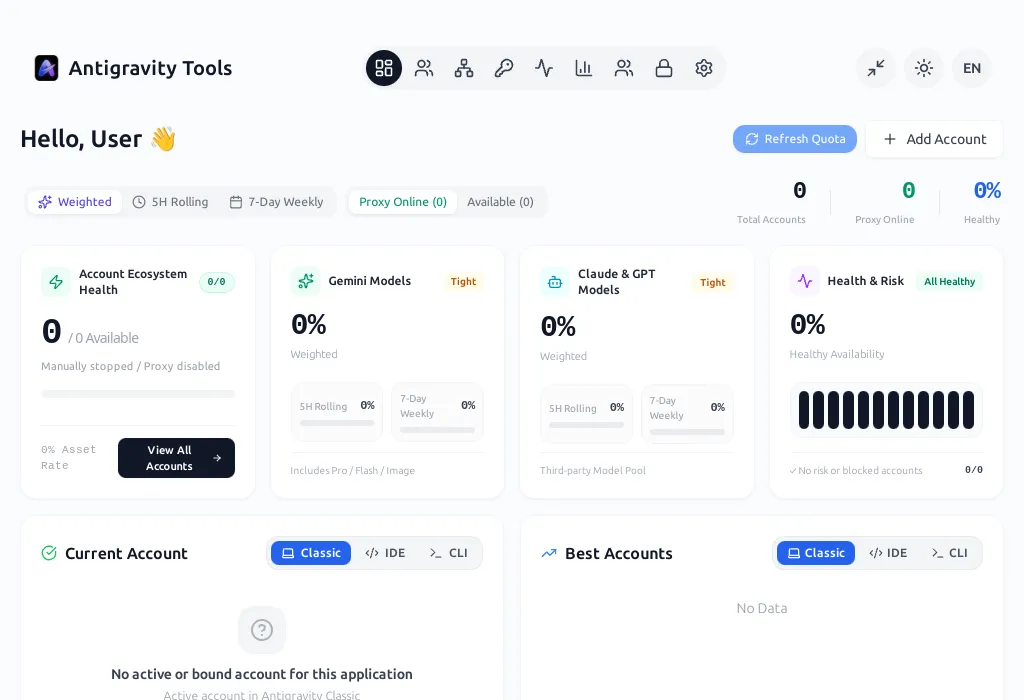
An empty dashboard is ready for your first account
A fresh data directory starts with zero accounts. Open Add Account and follow the account setup guide, or use the guide’s workflow chooser to connect your IDE or an API client.
STARTUP PROBLEMS
Find the next check for your startup error
Use the exact warning or terminal error to choose a check below. If a change leaves the symptom unchanged, undo it before trying another.
| Symptom | What to check | Next action |
|---|---|---|
| Windows tray icon, no window | Show Main Window, Quiet Startup and WebView2 Runtime. | Follow the Windows window checks and reopen the app. |
| macOS “damaged” warning | Download source, checksum, processor and exact alert. | Replace a damaged copy, then follow the macOS opening steps. |
| Linux missing library or FUSE error | The missing library named in the terminal and your distribution version. | Resolve package dependencies or use the AppImage FUSE guidance. |
| Linux blank or black window | Wayland/X11 session, graphics driver and any existing launch overrides. | Try the temporary rendering checks below. |
| Permission denied on Linux | Execute permission, folder ownership, a noexec mount or a logged SELinux denial. | Fix the specific permission or use an executable location. Keep SELinux enabled and investigate any denial with your administrator. |
| Window opens, but sign-in fails | The authorization link, callback and browser message. | Continue with sign-in troubleshooting. |
Temporary Linux rendering checks
Quit Manager before testing a launch command. On a Wayland desktop with a blank window, try the project’s documented rendering workaround:
env WEBKIT_DISABLE_DMABUF_RENDERER=1 ANTIGRAVITY_FORCE_WAYLAND=1 antigravity-toolsFor an AppImage, replace antigravity-tools with the executable’s path. If your desktop provides X11 or Xwayland, you can test that backend separately:
env ANTIGRAVITY_FORCE_X11=1 antigravity-toolsUse one command at a time. Existing GDK_BACKEND or rendering overrides in your shell or launcher can affect the result, so check those before testing. These commands set variables for a single launch; quit and reopen normally to return to your usual configuration.
If the window still fails, record your distribution, desktop session, GPU/driver, Manager version and terminal output using the diagnostics guide.
REMOVE OR REINSTALL
Uninstall while preserving your account data
Disable Launch at Startup, stop the API proxy and quit Manager. Back up the actual data directory before removing or replacing the application.
- Windows: open Settings → Apps and uninstall Antigravity Tools.
- macOS: move Antigravity Tools.app from Applications to the Trash. For a Homebrew installation, use
brew uninstall --cask antigravity-tools. - Debian or Ubuntu: remove the installed package with
sudo apt remove antigravity-tools. - Fedora: use
sudo dnf remove antigravity-tools. - AppImage: remove the executable and any launcher or symlink you created for it.
Account and configuration files may remain in the data directory after uninstalling. Keep them for a reinstall, or follow the data and recovery guide if you want to remove or migrate them. When downgrading, use the rollback guidance to check whether you need a backup from the older version.